Set up your club, pick your sports, and get your invite code, in about two minutes.
Getting startedUpdated July 2026
Creating a club takes about two minutes and you can do all of it from your phone. You do not need to prepare anything in advance: the only required choices are your club name and your club type, and everything else can be filled in later.
Before you start
Download Konia on iOS or Android. You can create your account with an email address, or sign in with Google. On an iPhone or iPad you can also use Apple. If you already have a Konia account, you can create a club from it directly and keep everything under one login.
Create the club
Open the create flow
New to Konia? On the welcome screen, choose Create a club. Already signed in? Go to the Me tab, tap My clubs, then Create a club.
Name your club
Enter your Club Name, between 3 and 30 characters. Use the name your members already say out loud, not the legal entity name. It appears on every training, race, and post.
Pick your club type
Choose Triathlon, Running, Cycling, or Swimming. This is the only other required field, and it shapes the app around your sport: it decides which training and race types are offered first.
Pick Triathlon if your club does more than one of these. You can still create running, cycling, and swimming sessions from any club type.
All optional, and all editable later: a short Description (up to 200 characters), plus an Email, Website, and Instagram username under Contact info. These show on My Club so new members know who you are.
Tap Create Club
That is it. You land on a confirmation screen showing your new club and its invite code.
What happens next
The confirmation screen shows Your Invite Code, a six-character code that is the only thing a member needs in order to join. Tap the copy icon to put it on your clipboard, or tap Share invite to send it straight away by message, email, or WhatsApp.
You do not have to do this now. The code is always one tap away: Invite members at the top of My Club shares it, and the card at the top of Manage club shows it.
Tip: add your club logo before you invite anyone. On My Club, tap the club logo and choose a photo. It is the first thing a new member sees when they land in the club, and it takes ten seconds now versus never later.
Settings worth checking early
Two things are not part of the create form and are easy to miss:
Your club logo, set by tapping the logo on My Club.
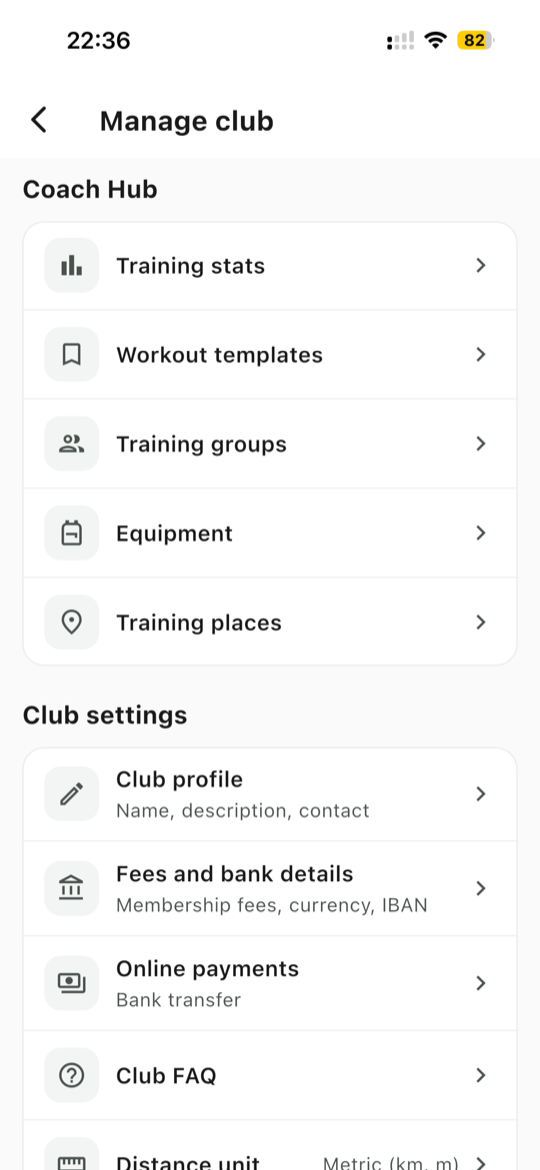
Distance unit, in Manage club, under Club settings. Choose metric (km, m), imperial UK (mi, m), or imperial USA (mi, yd). This changes how every distance and pace is shown to your members, so set it before you build your first workout.
Manage club gathers these tools, with the distance unit under Club settings.
Good to know: one account can create up to 10 clubs, and your members can belong to several clubs at once with the same login. A runner who trains with two clubs does not need two accounts.
Créer un club prend environ deux minutes et tout se fait depuis votre téléphone. Rien à préparer à l'avance : les seuls choix obligatoires sont le nom et le type de club, tout le reste peut être complété plus tard.
Avant de commencer
Téléchargez Konia sur iOS ou Android. Vous pouvez créer votre compte avec une adresse e-mail, ou vous connecter avec Google. Sur iPhone ou iPad, vous pouvez aussi utiliser Apple. Si vous avez déjà un compte Konia, créez votre club directement depuis celui-ci et gardez tout sous un seul identifiant.
Créez le club
Ouvrez le formulaire de création
Nouveau sur Konia ? Sur l'écran d'accueil, choisissez Créer un club. Déjà connecté ? Allez dans l'onglet Moi, appuyez sur Mes clubs, puis Créer un club.
Nommez votre club
Saisissez le nom du club, entre 3 et 30 caractères. Utilisez le nom que vos membres emploient déjà à l'oral, pas la raison sociale. Il apparaît sur chaque entraînement, course et publication.
Choisissez le type de club
Choisissez Triathlon, Course à pied, Cyclisme ou Natation. C'est le seul autre champ obligatoire, et il adapte l'app à votre sport : il détermine quels types d'entraînement et de course sont proposés en premier.
Choisissez Triathlon si votre club pratique plusieurs de ces disciplines. Vous pourrez de toute façon créer des séances de course, de vélo et de natation depuis n'importe quel type de club.
Tout est optionnel et modifiable plus tard : une courte description (jusqu'à 200 caractères), ainsi qu'un e-mail, un site web et un nom d'utilisateur Instagram dans les coordonnées. Ces informations apparaissent sur Mon Club pour que les nouveaux membres sachent qui vous êtes.
Appuyez sur Créer le club
C'est tout. Vous arrivez sur un écran de confirmation qui affiche votre nouveau club et son code d'invitation.
Et ensuite
L'écran de confirmation affiche votre code d'invitation, un code à six caractères qui est la seule chose dont un membre a besoin pour rejoindre le club. Appuyez sur l'icône de copie pour le mettre dans le presse-papiers, ou appuyez sur Partager l'invitation pour l'envoyer immédiatement par message, e-mail ou WhatsApp.
Rien ne presse. Le code reste toujours à portée de main : le bouton Inviter en haut de Mon Club le partage, et la carte en haut de Gérer le club l'affiche.
Conseil : ajoutez le logo de votre club avant d'inviter qui que ce soit. Dans Mon Club, appuyez sur le logo du club et choisissez une photo. C'est la première chose qu'un nouveau membre voit en arrivant dans le club, et cela prend dix secondes maintenant contre jamais plus tard.
Réglages à vérifier tôt
Deux éléments ne font pas partie du formulaire de création et passent facilement inaperçus :
Le logo du club, en appuyant sur le logo, dans Mon Club.
L'unité de distance, dans Gérer le club, rubrique Paramètres du club. Choisissez métrique (km, m), impérial UK (mi, m) ou impérial USA (mi, yd). Cela change l'affichage de toutes les distances et allures pour vos membres, réglez-le donc avant de construire votre première séance.
Gérer le club regroupe ces outils, avec l'unité de distance dans Paramètres du club.
Bon à savoir : un compte peut créer jusqu'à 10 clubs, et vos membres peuvent appartenir à plusieurs clubs à la fois avec le même identifiant. Un coureur qui s'entraîne dans deux clubs n'a pas besoin de deux comptes.
La suite
Einen Verein zu erstellen dauert rund zwei Minuten und funktioniert komplett auf dem Handy. Du musst nichts vorbereiten: Pflicht sind nur der Vereinsname und der Vereinstyp, alles andere kannst du später ergänzen.
Bevor du startest
Lade Konia für iOS oder Android herunter. Du kannst dein Konto mit einer E-Mail-Adresse erstellen oder dich mit Google anmelden. Auf einem iPhone oder iPad geht auch Apple. Wenn du schon ein Konia-Konto hast, erstelle den Verein direkt daraus und behalte alles unter einem Login.
Den Verein erstellen
Öffne die Erstellung
Neu bei Konia? Wähle auf dem Startbildschirm Verein erstellen. Schon angemeldet? Geh zum Tab Ich, tippe auf Meine Vereine und dann auf Verein erstellen.
Benenne deinen Verein
Gib den Vereinsnamen ein, zwischen 3 und 30 Zeichen. Nimm den Namen, den eure Mitglieder ohnehin sagen, nicht den offiziellen Vereinsnamen aus dem Register. Er erscheint bei jedem Training, jedem Wettkampf und jedem Beitrag.
Wähle den Vereinstyp
Wähle Triathlon, Laufen, Radfahren oder Schwimmen. Das ist das einzige weitere Pflichtfeld, und es richtet die App auf euren Sport aus: Es bestimmt, welche Trainings- und Wettkampfarten zuerst angeboten werden.
Nimm Triathlon, wenn euer Verein mehrere davon macht. Lauf-, Rad- und Schwimmeinheiten kannst du ohnehin mit jedem Vereinstyp erstellen.
Alles optional und später änderbar: eine kurze Beschreibung (bis 200 Zeichen) sowie E-Mail, Website und Instagram-Name unter den Kontaktdaten. Das erscheint unter Mein Verein, damit neue Mitglieder wissen, wer ihr seid.
Auf Verein erstellen tippen
Fertig. Du landest auf einer Bestätigungsseite mit deinem neuen Verein und dem Einladungscode.
Wie es weitergeht
Die Bestätigungsseite zeigt euren Einladungscode, einen sechsstelligen Code, den ein Mitglied als Einziges zum Beitreten braucht. Tippe auf das Kopiersymbol, um ihn in die Zwischenablage zu legen, oder auf Einladung teilen, um ihn direkt per Nachricht, E-Mail oder WhatsApp zu verschicken.
Das musst du nicht sofort tun. Der Code ist immer schnell zur Hand: Einladen oben in Mein Verein teilt ihn, und die Karte oben unter Verein verwalten zeigt ihn.
Tipp: Füge das Vereinslogo hinzu, bevor du jemanden einlädst. Tippe in Mein Verein auf das Vereinslogo und wähle ein Foto. Es ist das Erste, was ein neues Mitglied beim Ankommen im Verein sieht, und es kostet jetzt zehn Sekunden statt später nie.
Einstellungen, die du früh prüfen solltest
Zwei Dinge sind nicht Teil des Formulars und werden leicht übersehen:
Das Vereinslogo, über das Logo in Mein Verein.
Die Distanzeinheit unter Verein verwalten, im Bereich Vereinseinstellungen. Wähle metrisch (km, m), imperial UK (mi, m) oder imperial USA (mi, yd). Das ändert die Anzeige aller Distanzen und Pace-Werte für eure Mitglieder, stell es also ein, bevor du das erste Workout baust.
Verein verwalten bündelt diese Werkzeuge, die Distanzeinheit steht unter Vereinseinstellungen.
Gut zu wissen: Ein Konto kann bis zu 10 Vereine erstellen, und eure Mitglieder können mit demselben Login gleichzeitig in mehreren Vereinen sein. Wer in zwei Vereinen trainiert, braucht kein zweites Konto.
Als Nächstes
Ready to give your club a home?
Download Konia today, it is free, and bring your club together.