Share your invite code by message, email, or WhatsApp, and see who has joined.
Getting startedUpdated July 2026
Your club has one invite code, and it is all anybody needs to join. There is no per-person invite to send, no list of email addresses to collect, and nothing for you to approve afterwards. Share the code once, in the place your members already talk, and they let themselves in.
Where to find your invite code
The quickest way: on My Club, tap Invite members, next to Manage club at the top. It opens the share options straight away.
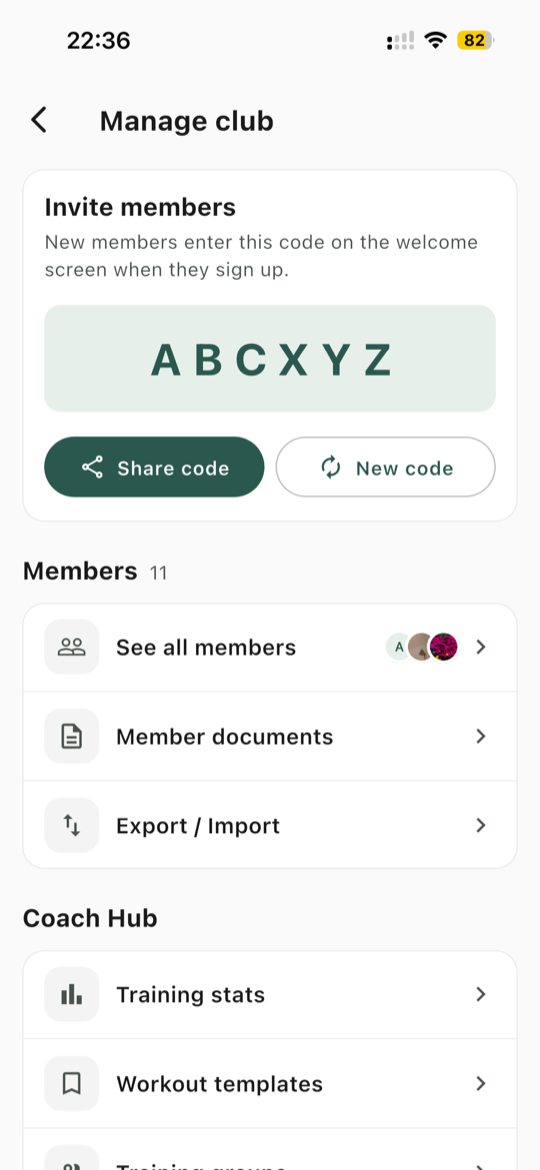
The code itself is on the Invite members card at the top of Manage club, in large letters:
Tap the code to open the share options, or use Share code.
Press and hold to copy the code straight to your clipboard without opening anything.
Members can share the code too, with Invite friends at the top of My Club.
The Invite members card, at the top of Manage club.
Share it
Tapping the card opens a sheet with everything in one place:
Pick how to send it
SMS, Email, or WhatsApp. WhatsApp only appears if it is installed on your phone. More options hands over to your phone's own share sheet, so you can use Signal, Messenger, Telegram, or anything else you have.
Send the ready-made message
Konia writes it for you: a short line explaining what the club uses Konia for, a link, and the code. You can edit it before sending.
Or copy instead of sending
Copy link with code gives you a link you can paste into a group chat or a newsletter. Copy code gives you just the six characters. Preview link shows you what a member sees when they tap it.
What your members see
Tapping the link opens a Konia page with your club's name on it, which sends them to the App Store or Google Play automatically, depending on their phone. After installing, they open Konia and enter the code.
The link is a shortcut to the right store, not a one-tap join. Everyone still types the code once inside the app, which is why it is worth including the code itself in your message and not only the link.
Good to know: the code does not expire and there is no limit on how many people use it. The same code works for the twelfth member and the hundredth. Members join immediately, with nothing for you to approve.
Seeing who has joined
My Club shows the member count at the top. Tap it to open the members list, with search and sorting. If you imported members from a spreadsheet, anyone who has not signed up yet appears in a separate Pending section, so you can tell at a glance who is still missing.
Getting your club to actually move
The mechanics take a minute. Getting eighty people to change where they look for training times is the real work. What tends to work:
Put something in Konia worth opening it for. Add next week's trainings before you send the invite. An empty club gives people nothing to come back to.
Send the invite where your club already is. Paste it into the group chat you are trying to replace. That is where everyone actually reads things.
Pick a date and be plain about it. "From the 1st, session times are only in Konia" moves more people than any number of reminders.
Start with your regulars. Get the ten people who never miss a session on first. Once they are answering "is training on?" with "check Konia", the rest follows.
Re-send it once, a week later. Plenty of people mean to install it and forget. One nudge recovers a surprising number of them.
Tip: add your club logo before sending the first invite. Tap the club logo on My Club to set it. The link itself only carries your club's name, but the logo is the first thing a new member sees once they are in, and an empty grey circle is a poor welcome.
Votre club a un seul code d'invitation, et c'est tout ce qu'il faut pour le rejoindre. Aucune invitation individuelle à envoyer, aucune liste d'adresses e-mail à rassembler, et rien à valider de votre côté. Partagez le code une fois, là où vos membres discutent déjà, et ils entrent tout seuls.
Où trouver votre code d'invitation
Le plus rapide : dans Mon Club, appuyez sur Inviter, à côté de Gérer le club en haut de l'écran. Les options de partage s'ouvrent directement.
Le code lui-même figure en grand sur la carte Inviter des membres, en haut de Gérer le club :
Appuyez sur le code pour ouvrir les options de partage, ou utilisez Partager.
Appuyez longuement pour copier directement le code dans le presse-papiers, sans rien ouvrir.
Les membres peuvent aussi partager le code, avec Inviter des amis en haut de Mon Club.
La carte Inviter des membres, en haut de Gérer le club.
Partagez-le
Toucher la carte ouvre une fenêtre qui rassemble tout :
Choisissez le canal d'envoi
SMS, e-mail ou WhatsApp. WhatsApp n'apparaît que s'il est installé sur votre téléphone. Plus d'options passe la main au partage natif de votre téléphone : Signal, Messenger, Telegram ou tout ce que vous utilisez.
Envoyez le message tout prêt
Konia le rédige pour vous : une courte phrase expliquant à quoi le club utilise Konia, un lien et le code. Vous pouvez le modifier avant l'envoi.
Ou copiez au lieu d'envoyer
Copier le lien avec le code vous donne un lien à coller dans une conversation de groupe ou une newsletter. Copier le code ne donne que les six caractères. Aperçu du lien vous montre ce qu'un membre voit en le touchant.
Ce que voient vos membres
Toucher le lien ouvre une page Konia au nom de votre club, qui les envoie automatiquement vers l'App Store ou Google Play selon leur téléphone. Après l'installation, ils ouvrent Konia et saisissent le code.
Le lien est un raccourci vers la bonne boutique, pas une adhésion en un clic. Chacun saisit le code une fois dans l'app, d'où l'intérêt d'inclure le code lui-même dans votre message, et pas seulement le lien.
Bon à savoir : le code n'expire pas et le nombre de personnes qui l'utilisent n'est pas limité. Le même code fonctionne pour le douzième comme pour le centième membre. Les membres rejoignent immédiatement, sans rien à valider de votre part.
Voir qui a rejoint
Mon Club affiche le nombre de membres en haut. Appuyez dessus pour ouvrir la liste des membres, avec recherche et tri. Si vous avez importé des membres depuis un tableur, ceux qui ne se sont pas encore inscrits apparaissent dans une section En attente distincte, pour voir d'un coup d'œil qui manque encore.
Faire réellement basculer votre club
La partie technique prend une minute. Amener quatre-vingts personnes à changer l'endroit où elles cherchent les horaires, c'est le vrai travail. Ce qui fonctionne en général :
Mettez dans Konia quelque chose qui vaille la peine de l'ouvrir. Ajoutez les entraînements de la semaine suivante avant d'envoyer l'invitation. Un club vide ne donne aucune raison de revenir.
Envoyez l'invitation là où votre club se trouve déjà. Collez-la dans la conversation de groupe que vous cherchez à remplacer. C'est là que tout le monde lit vraiment.
Fixez une date et soyez direct. « À partir du 1er, les horaires ne seront plus que dans Konia » fait bouger plus de monde que n'importe quel rappel.
Commencez par vos habitués. Faites entrer d'abord les dix personnes qui ne manquent jamais une séance. Dès qu'elles répondent « regarde sur Konia » à la question « l'entraînement est maintenu ? », le reste suit.
Renvoyez-la une fois, une semaine plus tard. Beaucoup ont l'intention de l'installer et oublient. Une relance en récupère un nombre étonnant.
Conseil : ajoutez le logo de votre club avant la première invitation. Appuyez sur le logo du club dans Mon Club pour le définir. Le lien lui-même ne transporte que le nom du club, mais le logo est la première chose qu'un nouveau membre voit une fois entré, et un rond gris vide fait un accueil médiocre.
La suite
Euer Verein hat einen einzigen Einladungscode, und mehr braucht niemand zum Beitreten. Keine einzelnen Einladungen, keine Liste von E-Mail-Adressen, und nichts, was du hinterher freigeben musst. Teile den Code einmal dort, wo eure Mitglieder ohnehin schreiben, und sie lassen sich selbst herein.
Wo du euren Einladungscode findest
Am schnellsten geht es so: Tippe in Mein Verein oben auf Einladen, neben Verein verwalten. Die Teilen-Optionen öffnen sich sofort.
Den Code selbst zeigt die Karte Mitglieder einladen oben unter Verein verwalten, in grosser Schrift:
Tippe auf den Code, um die Teilen-Optionen zu öffnen, oder nutze Teilen.
Halte ihn gedrückt, um den Code direkt in die Zwischenablage zu kopieren, ohne etwas zu öffnen.
Auch Mitglieder können den Code teilen, mit Freunde einladen oben in Mein Verein.
Die Karte Mitglieder einladen, oben unter Verein verwalten.
Teile ihn
Ein Tipp auf die Karte öffnet ein Fenster, das alles an einem Ort bündelt:
Wähle den Weg
SMS, E-Mail oder WhatsApp. WhatsApp erscheint nur, wenn es auf deinem Handy installiert ist. Mehr Optionen übergibt an das Teilen-Menü deines Handys, also Signal, Messenger, Telegram oder was du sonst nutzt.
Verschicke die fertige Nachricht
Konia formuliert sie für dich: ein kurzer Satz, wofür der Verein Konia nutzt, ein Link und der Code. Du kannst sie vor dem Senden anpassen.
Oder kopieren statt senden
Link mit Code kopieren gibt dir einen Link für den Gruppenchat oder einen Newsletter. Code kopieren gibt nur die sechs Zeichen. Link-Vorschau zeigt dir, was ein Mitglied beim Antippen sieht.
Was eure Mitglieder sehen
Ein Tipp auf den Link öffnet eine Konia-Seite mit eurem Vereinsnamen, die sie je nach Handy automatisch in den App Store oder zu Google Play schickt. Nach der Installation öffnen sie Konia und geben den Code ein.
Der Link ist eine Abkürzung zum richtigen Store, kein Beitritt mit einem Tipp. Den Code gibt jede und jeder einmal in der App ein, deshalb lohnt es sich, den Code selbst in die Nachricht zu schreiben und nicht nur den Link.
Gut zu wissen: Der Code läuft nicht ab, und es gibt kein Limit, wie viele ihn nutzen. Derselbe Code funktioniert für das zwölfte wie für das hundertste Mitglied. Mitglieder treten sofort bei, du musst nichts freigeben.
Sehen, wer beigetreten ist
Mein Verein zeigt oben die Zahl der Mitglieder. Tippe darauf, um die Mitgliederliste mit Suche und Sortierung zu öffnen. Wenn du Mitglieder aus einer Tabelle importiert hast, erscheinen alle, die sich noch nicht registriert haben, in einem eigenen Abschnitt Ausstehend, damit du auf einen Blick siehst, wer noch fehlt.
Den Verein wirklich zum Umziehen bringen
Das Technische dauert eine Minute. Achtzig Leute dazu zu bringen, woanders nach Trainingszeiten zu schauen, ist die eigentliche Arbeit. Was meistens funktioniert:
Leg etwas in Konia, wofür sich das Öffnen lohnt. Trag die Trainings der nächsten Woche ein, bevor du die Einladung verschickst. Ein leerer Verein gibt niemandem einen Grund wiederzukommen.
Verschicke die Einladung dort, wo euer Verein schon ist. Poste sie in den Gruppenchat, den du ersetzen willst. Da liest wirklich jeder mit.
Setz ein Datum und sag es deutlich. „Ab dem 1. stehen die Zeiten nur noch in Konia" bewegt mehr Leute als jede Erinnerung.
Fang mit den Stammleuten an. Hol zuerst die zehn dazu, die nie eine Einheit auslassen. Sobald die auf „Ist Training?" mit „Schau in Konia" antworten, kommt der Rest von allein.
Schick sie eine Woche später nochmal. Viele nehmen sich das Installieren vor und vergessen es. Ein einziger Anstoss holt erstaunlich viele zurück.
Tipp: Füge das Vereinslogo hinzu, bevor du die erste Einladung verschickst. Tippe dafür in Mein Verein auf das Vereinslogo. Der Link selbst trägt nur euren Vereinsnamen, aber das Logo ist das Erste, was ein neues Mitglied nach dem Beitritt sieht, und ein leerer grauer Kreis ist ein schwacher Empfang.
Als Nächstes
Ready to give your club a home?
Download Konia today, it is free, and bring your club together.